Circuit Studio
Studio shows your project in the browser: the network as a graph, everything in tables, tools to trace and test, and a compare view.
Studio only reads your files. It touches a device only when you press Read from the device now, and then it only reads.
Start it
- Run
circuit studio, or pick Studio in the menu. - Your browser opens
http://127.0.0.1:4600. - Save a file, and Studio updates by itself.
Only your machine can reach it. Ctrl+C stops it.
| Option | What it does |
|---|---|
--port <number> | The port. The default is 4600. |
--host <address> | Where it listens. 0.0.0.0 is every address. The default is this machine only. See Host Studio. |
--allow-host <names> | The names people use to reach it, behind a proxy. Studio refuses any other name. |
--no-open | Don't open the browser. |
Every page has its own address, such as /devices/edge-01, to bookmark or send.
The graph
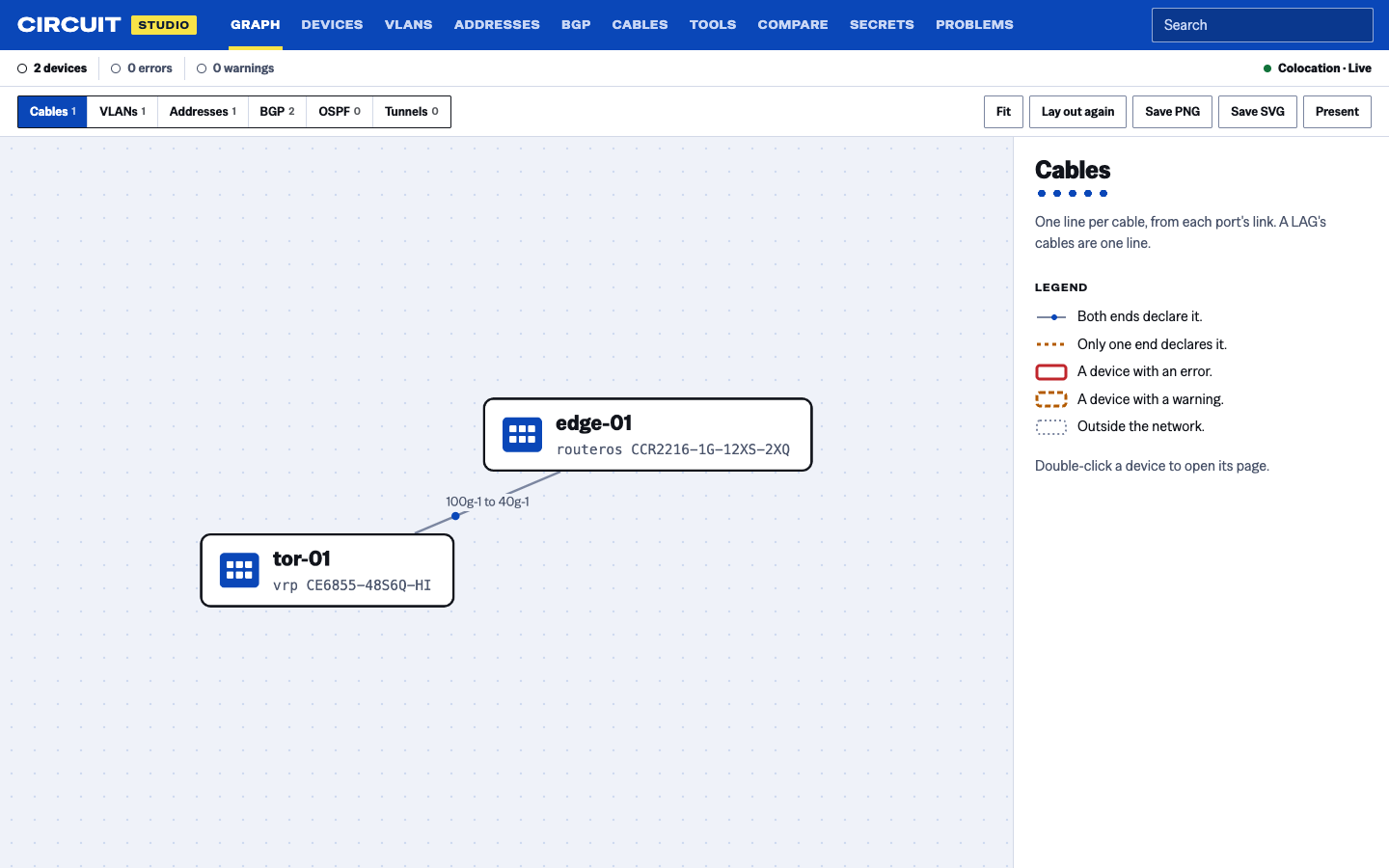
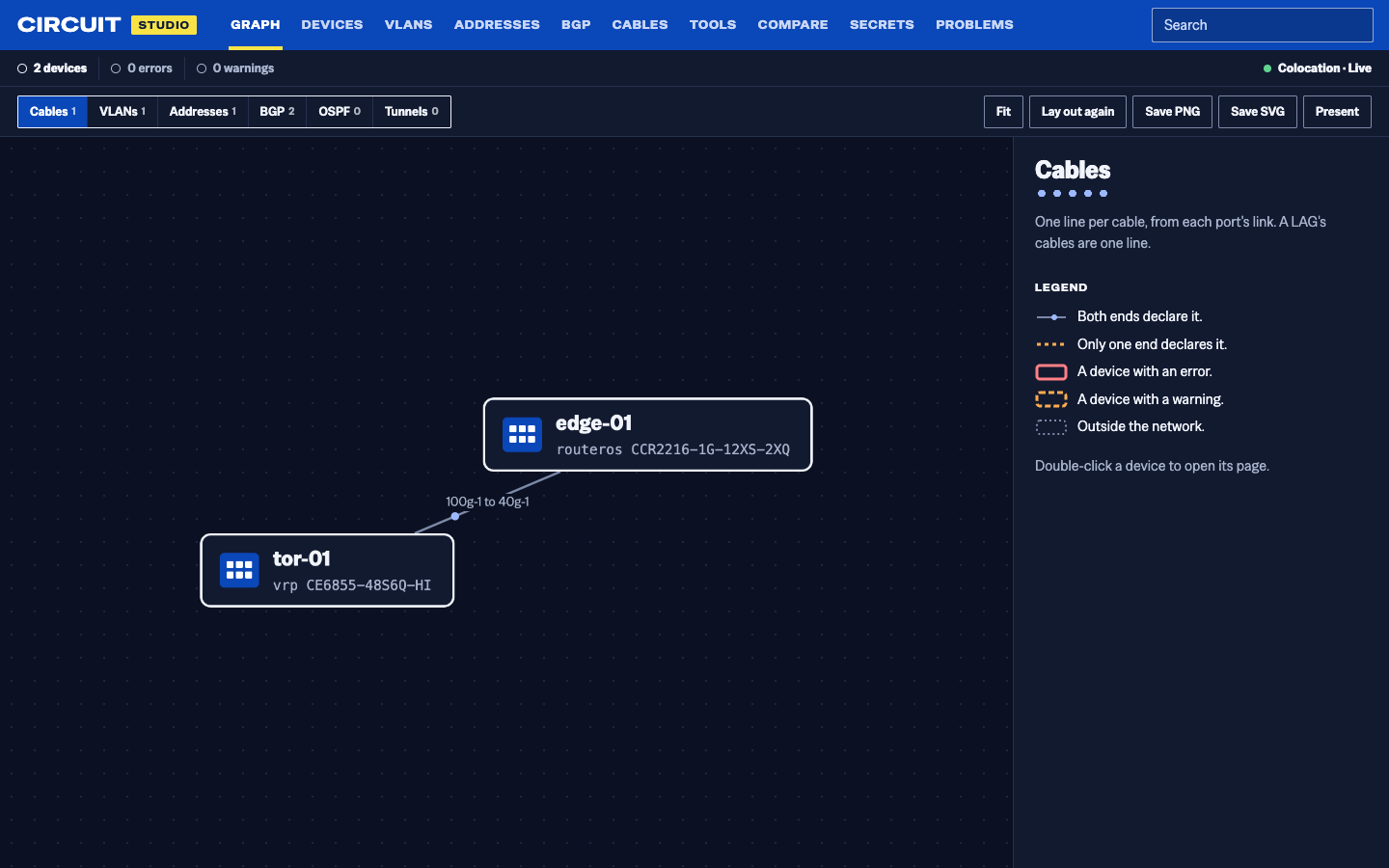
The graph draws your network one layer at a time. Pick a layer at the top of the drawing, or press 1 to 6.
| Layer | What it draws |
|---|---|
| Cables | One line per cable, from each port's link. The cables of one LAG are one line. |
| VLANs | The VLANs each cable carries. Pick a VLAN in the side panel to light its cables. |
| Addresses | Address ranges that devices share. |
| BGP | Sessions between your devices, matched by address, and sessions to each AS outside. |
| OSPF | Interfaces in one area and one prefix, where neither side is passive. |
| Tunnels | GRE and VXLAN tunnels, matched by their endpoints, and WireGuard peers. |
- Click a device or a line to see it in the side panel. Esc clears the selection.
- Double-click a device to open its page.
- Drag a device to move it. Studio remembers where you put it, per layer, after a reload too.
- Drag the empty space to move the drawing, and scroll to zoom.
- Tab reaches the list of devices, for the keyboard.
- More than 3 lines between two devices are drawn as one, such as "4 cables". Click it for the list.
The graph shows what your files say, not what is plugged in. To check the cables, run circuit diff on the device: it compares what LLDP sees with each link.
Present on a big screen
Present, or the key P, shows the network on a wall screen, such as in a NOC. Every 6 seconds it moves on: first the whole layer, then its four busiest devices one by one, then the next layer that has lines.
It waits while you point at a device or drag one. Stop presenting or Esc stops it. A screen that reloads keeps presenting.
Look things up
The tabs at the top list everything in your files.
| Tab | What it lists |
|---|---|
| Devices | Every device, with its platform, model, site, ports declared, and findings. Each opens the device's page. |
| VLANs | Every VLAN, its gateways, and the access and trunk ports on each device. |
| Addresses | Each address space with its segments, what is free and the next free address, and every address in use. |
| BGP | Every session, what it takes from its group, and what is at the far end. |
| Cables | Every cable, with the VLANs it carries. |
| Problems | What circuit validate finds, and every line only one end declares. The count in the top bar is the same. |
Search finds a name, an address, or any other value in any device, up to 200 matches.
Point at a field name with a dotted underline, such as remote_as, to see what it means.
A secret shows as its name, such as secret("EDGE_01_PASSWORD"), never as its value. To see the values, see Secrets in Studio.
A device's page
Most of its tabs follow the groups of the device's file, such as Interfaces and Routing. Three tabs are different.
| Tab | What it shows |
|---|---|
| Config | The config Circuit writes, in the vendor's own commands. |
| On the device now | What the device runs, and what circuit apply would send. |
| History | The commits that changed the device's file, newest first. |
Read from the device now logs in to the device and reads it, like circuit diff. Nothing is sent, and Studio keeps no copy. It needs the device's password, so it works only when the secrets password comes from 1Password, CIRCUIT_SECRETS_PASSWORD, or a password Circuit remembers. Otherwise run circuit diff, which asks for it.
Review a change
Studio compares your files now with a branch, a tag, or a commit. Your project must be in git, which circuit new sets up.
- Open Compare in the top bar.
- Pick a branch, tag, or recent commit, or type one, such as
mainorHEAD~3. - Studio shows the devices added and removed, and the config of each changed device, line by line. It also shows the lines of the graph added and gone, and the findings of
circuit validatethat are new or gone. - Show in the graph draws the changes on the graph. Stop comparing goes back to the graph as it is.
Before you merge a pull request, compare its branch with main. Studio reads both sides with the Circuit you run now, so changes to Circuit itself don't show.
To compare from a commit in a device's History tab, press compare with now.